Promotions Section Guide
Use the Promotions tools to quickly generate ready-to-publish marketing content for your store.
Email Campaigns
View professionally formatted email campaigns that can be:
- Downloaded as an HTML file for upload into your email marketing system
- Copied and sent through your local email client
- Copied for manual use in your preferred platform
These campaigns include:
- Formatted messaging
- Images
- Clickable links
Designed to help drive traffic and increase sales.
Social Media Posting via Sponsored Promotions
The Social Media feature in Connect allows users to create and publish marketing posts using pre-designed templates. This functionality is available in the Sponsored Promotions section under the Marketing menu.
Users can select an existing template and generate a social media post that can be shared across multiple supported platforms.
Accessing Sponsored Promotions
- Log in to the Connect platform.
- From the main menu, navigate to:
Menu → Marketing → Sponsored Promotions
- The Sponsored Promotions page will open and display a list of available marketing templates.
These templates are pre-designed and ready to be used for creating social media posts.
Selecting a Template
- Browse through the list of available templates in the Sponsored Promotions section.
- Select the template you want to use for your marketing post.
Note:
Templates available in this section cannot be edited or modified. Users can only select an existing template to generate a social media post.
👉 Choose Email or Social Media
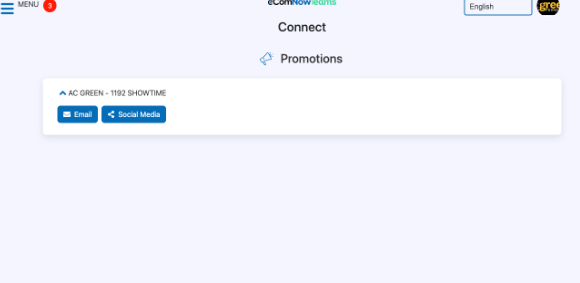
For Email
- Click to open and view the Campaign Email
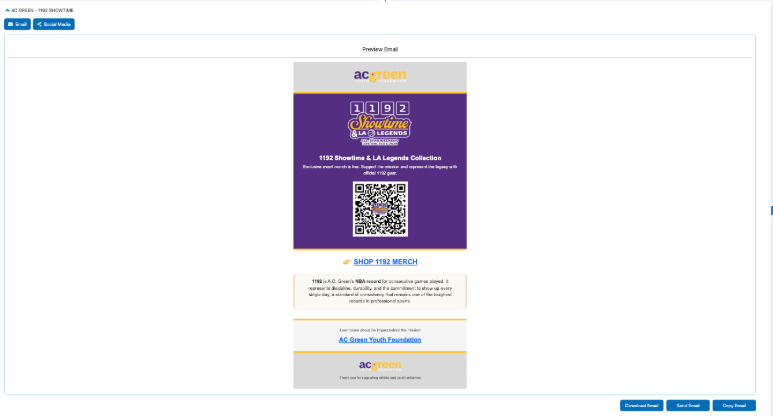
Email Campaign Options
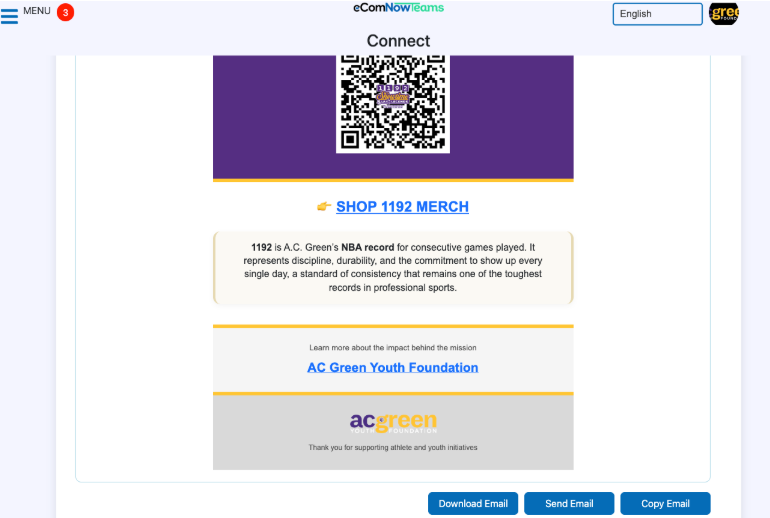
1. Download Campaign File
Download this ready-to-send HTML email file to upload directly into your email marketing platform, including:
- Mailchimp
- HubSpot
- Emma
- MailerLite
- And others
2. Send Email
Select this option to:
- Copy the email content to your clipboard
- Automatically open your default email client on your computer
- Paste and send directly from your local email application
This option is ideal for quick one-to-one emails or small list sends.
3. Copy Email
Select this option to:
- Copy the full email content to your clipboard
You can then manually paste it into any email client or system of your choice.
This works well if you prefer to control the sending process within your own platform.
Social Media Options
Social Media Post
- Select Social Media
- Choose your desired social platform(s)
- Generate ready-to-post content
You may select one or more social platforms to create posts tailored for each channel.
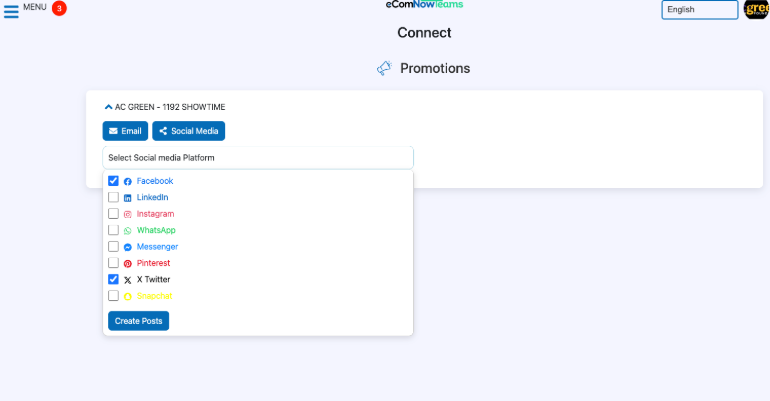
- Our AI-powered assistant automatically creates posts for your chosen social media platforms, complete with messaging, emojis, short links, and hashtags.
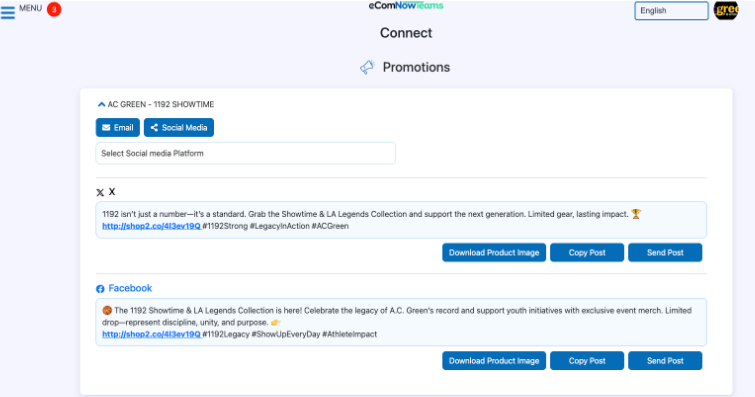
1. Download Product Image
- Downloads the product image directly to your computer.
- Use this image when creating your social post inside your selected social media platform.
2. Copy Post
- Copies the entire social media post to your clipboard
- Includes emojis, full message content, short link, and hashtags
- Paste directly into your social media platform when creating your post
Note: The product image must be uploaded separately when creating the post.
3. Send Post
- Copies the full post to your clipboard
- Opens the selected social media platform so you can log in and create your post
Note: The product image must be uploaded separately when creating the post.