Manage Users
The Manage Users section allows administrators to create, view, and manage user accounts in VendorHub.
From the left navigation menu, go to Administration → Manage Users.
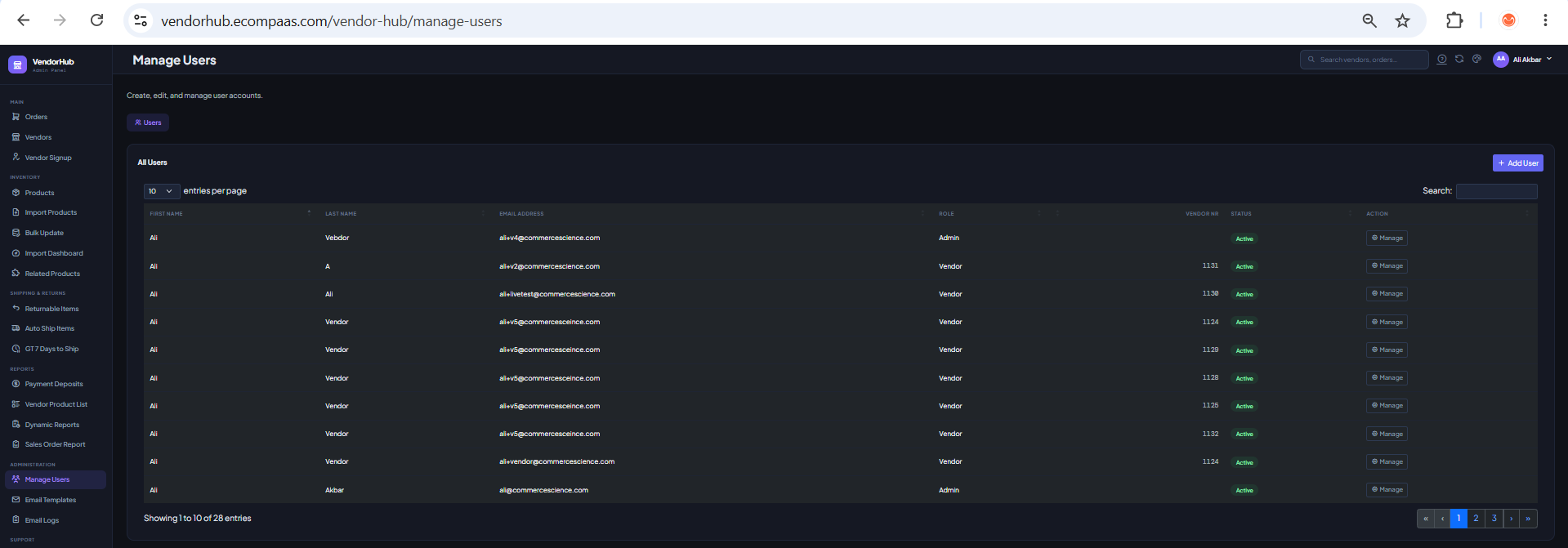
Users List
The Manage Users page displays all users currently configured in VendorHub.
The table includes:
| Field | Description |
|---|---|
| First Name | User's first name. |
| Last Name | User's last name. |
| Email Address | Email address associated with the user account. |
| Role | User's assigned role, such as Admin or Vendor. |
| Vendor # | Vendor number associated with the user, when applicable. |
| Status | Shows whether the user is Active. |
| Action | Provides the Manage option to view or update the user. |
You can use the Search field to quickly find a specific user.
The number of users displayed per page can also be changed using the entries-per-page dropdown.
Add a User
To create a new user:
- Go to Administration → Manage Users.
- Click Add User in the top-right corner of the page.
- Enter the user's First Name.
- Enter the user's Last Name.
- Enter the user's Email Address.
- Enter the user's Phone Number, if required.
- Select the appropriate Role.
- If the user is a vendor user, select or assign the appropriate Vendor #.
- Complete any other required fields.
- Click Save to create the user.
Once saved, the new user will appear in the Users list.
Note: Make sure the email address is correct because it may be used for account and login-related communication.
Manage a User
To view or update an existing user:
- Find the user in the Users list.
- Click Manage in the Action column.
- Review the user's account information.
- Make the required changes.
- Click Update Details or the available save option to apply the changes.
Use the Back option to return to the Users list without making changes.
User Roles
The Role column identifies the type of access assigned to each user.
Common roles include:
- Admin – Used for administrators who manage VendorHub.
- Vendor – Used for vendor users who access VendorHub for their vendor account.
The available role options may depend on the VendorHub configuration and user permissions.
Vendor Users
When creating or managing a user with the Vendor role, the user can be associated with a specific Vendor #.
The Vendor # allows VendorHub to connect the user account to the appropriate vendor.
For example:
```text Role: Vendor Vendor #: 1131